01
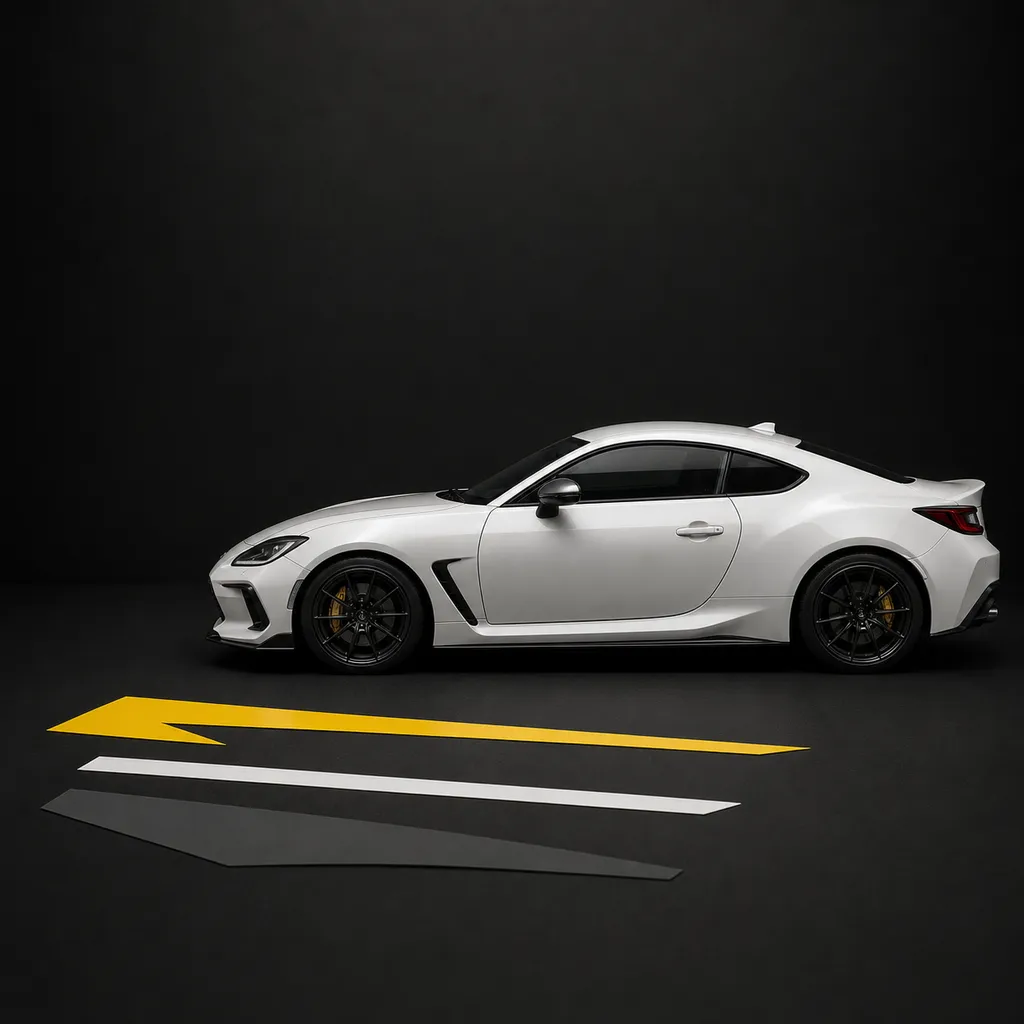
Generate from idea
Describe the artwork direction, choose a style and shape, then create it on the car photo and surface you selected.
 DecalFit
AI decal previews for your car
Choose a design or describe your own. Pick the target panel, shape the placement, and preview the direction on a car photo you choose.
Built for iPhone and iPad · Available now on the App Store

A decision you can see
Drag the slider to compare the same car before and after. The preview is there to help you decide on look, scale, and placement.
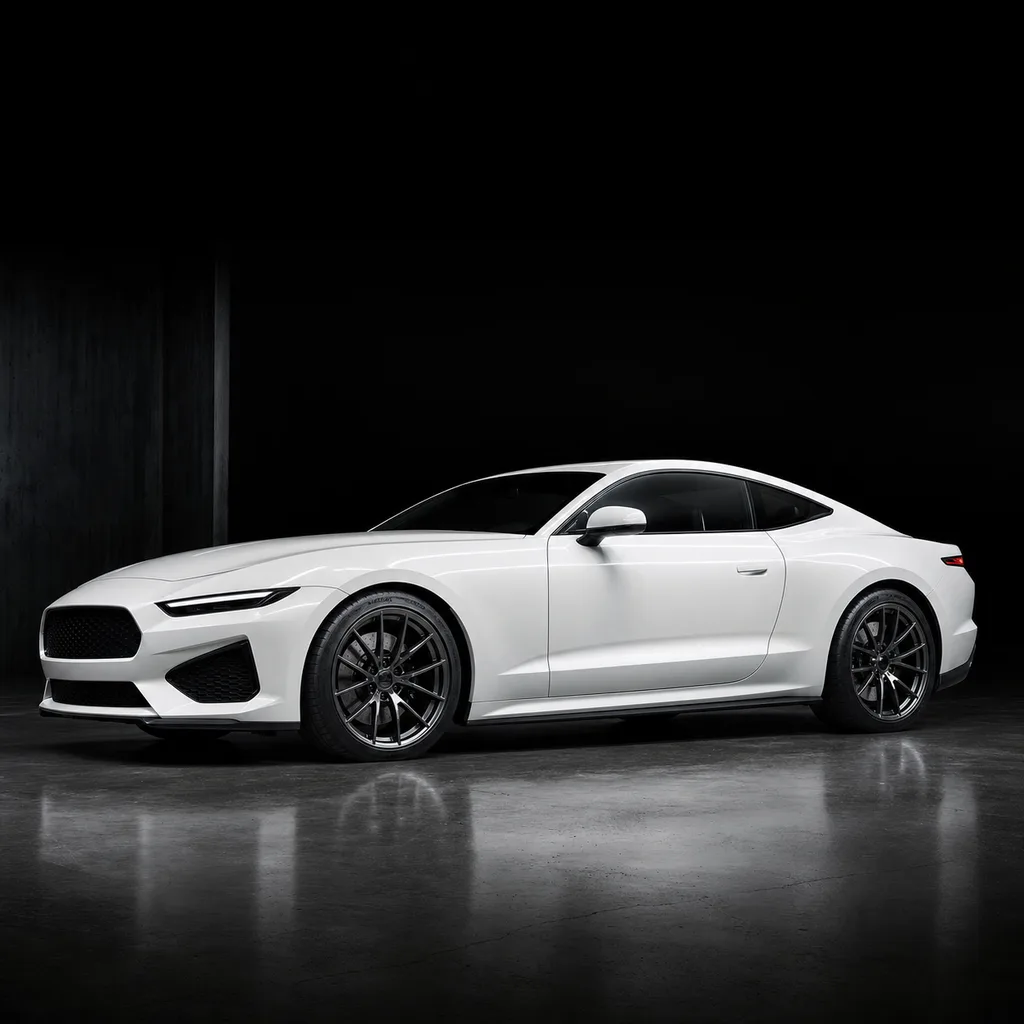 Before
After
Before
After
AI previews are visual concepts. They are not print files, measurements, paint matches, or installation guarantees.
Start your way
Describe the artwork direction, choose a style and shape, then create it on the car photo and surface you selected.
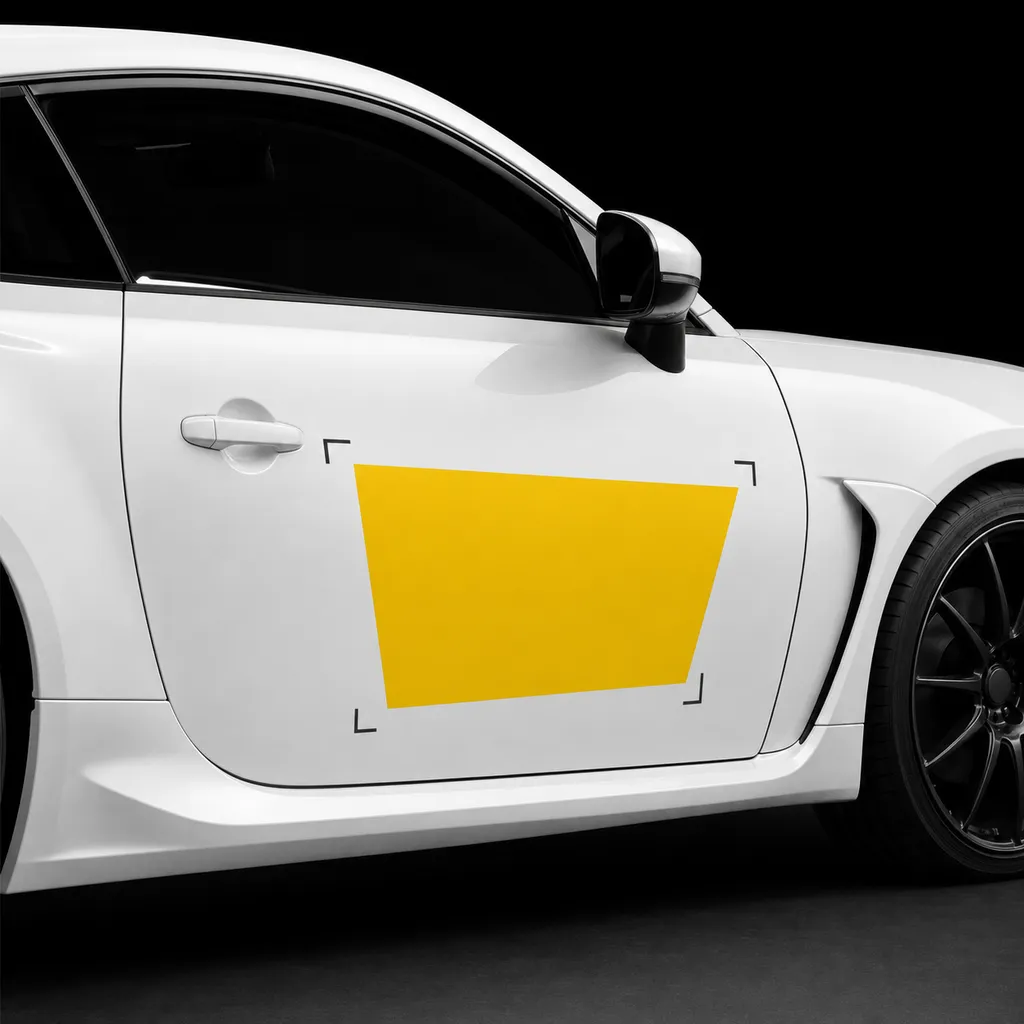
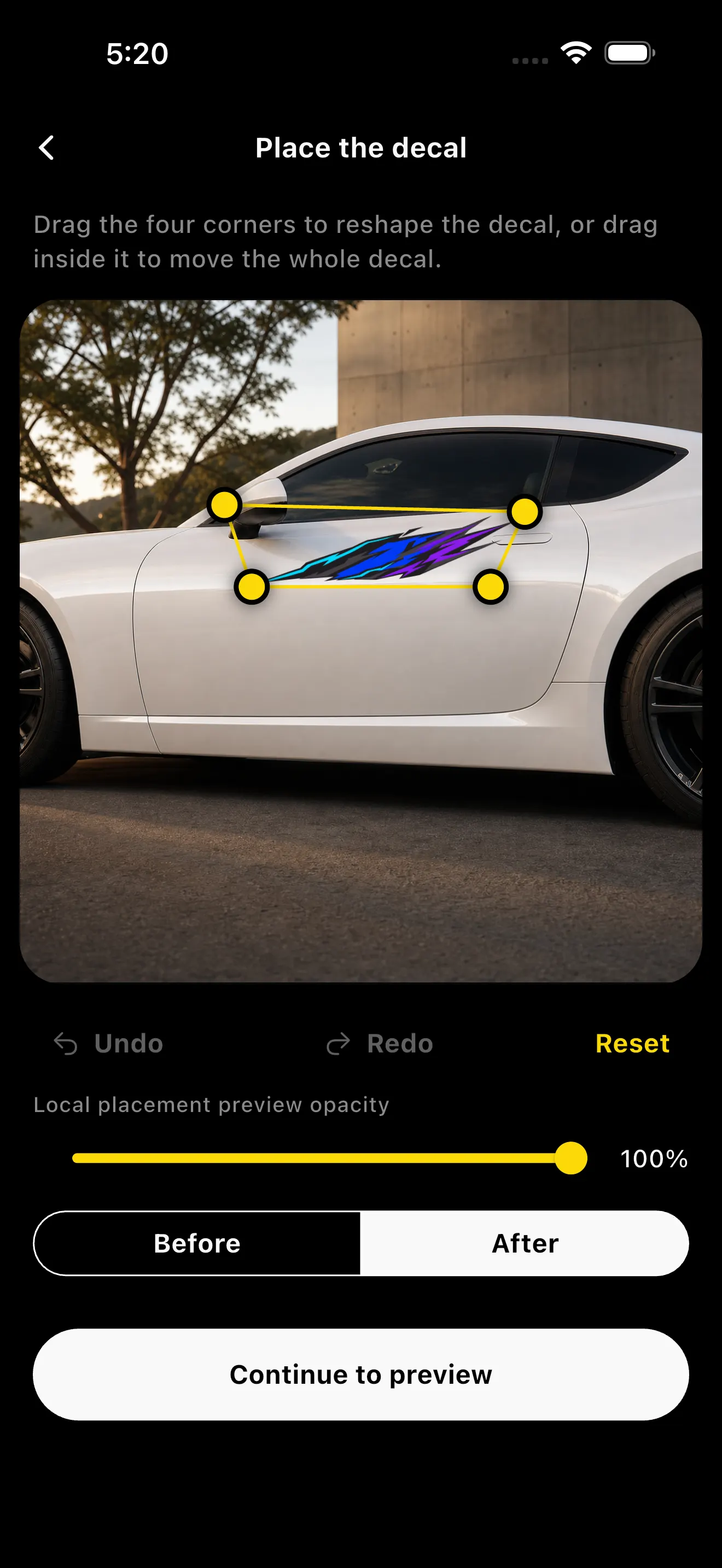
Pick from DecalFit designs or choose your own transparent artwork, then shape the four corners over the target panel.
How it works
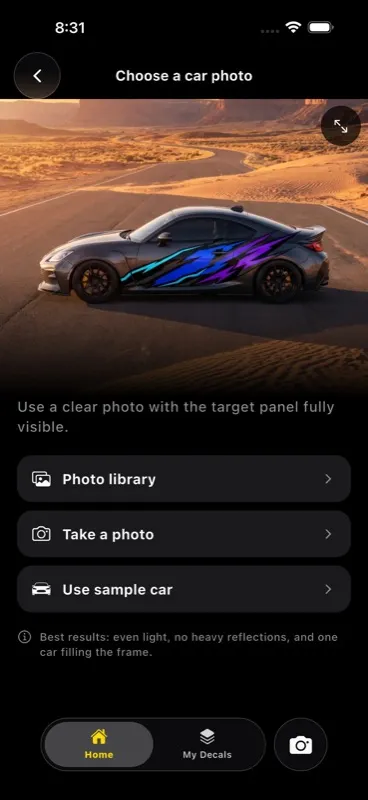
Use a photo, take one in the app, or begin with a sample car.
Tell DecalFit whether the target is the hood, side, rear glass, or rear panel.
Move the whole decal or adjust each corner before requesting the finished preview.

Placement has context
Each target tells the preview which car surface matters. You still keep the final say by correcting the placement yourself.
Built with privacy in the flow
DecalFit keeps saved projects inside the app unless you choose to export them. Live AI requests temporarily send the inputs needed to create your preview. Raw inputs and prompt text are not written to Firestore; an accepted output may be held briefly as encrypted delivery data, as explained in the Privacy Policy.
Read the Privacy Policy →Questions, answered
The app is free to download. Live AI generation uses credits. Optional credit packs and Studio Pass subscriptions are shown in the app, with prices confirmed by Apple before purchase.
No. DecalFit creates a visual preview to help you explore a direction before production or installation.
Yes. A clear photo with the target panel visible gives you the most useful placement and preview flow.
Yes. You can choose DecalFit artwork or select your own supported image and position it on the car.
DecalFit is designed not to consume a user credit when a preview fails before an accepted result is delivered.
Use the support and data-deletion links below, or open Account inside the app.
DecalFit for iPhone and iPad